Your Sunbeam phone can play podcasts as offline audio files. There are several tools available to download podcasts on a PC and them sync them to your phone over USB. Some available options are MediaMonkey, MusicBee or gPodder. This guide shows you how to use MediaMonkey on a Windows PC to subscribe to podcasts and download episodes, then sync them to your phone.
What you'll need: a Windows PC, MediaMonkey installed, and a data transfer USB cable such as the one that came with your phone.
Install MediaMonkey on your PC
- On your Windows computer, go to mediamonkey.com and download MediaMonkey for Windows.
- Run the installer and follow the prompts.
- Open MediaMonkey once installation finishes.
The free version is sufficient for downloading and syncing podcasts.
Enable File Transfer mode on your phone
- Plug the phone into your computer.
- Enable file transfer by entering code *3453* at the home screen.
- Or swipe down from the top of the home screen and tap the USB charging notification. Switch this to “Transfer files”.
- The phone’s internal storage will now show up on your computer.
If the phone doesn't appear, unplug and reconnect the cable, and make sure you selected “Transfer files” rather than "Charge only."
Subscribe to a podcast
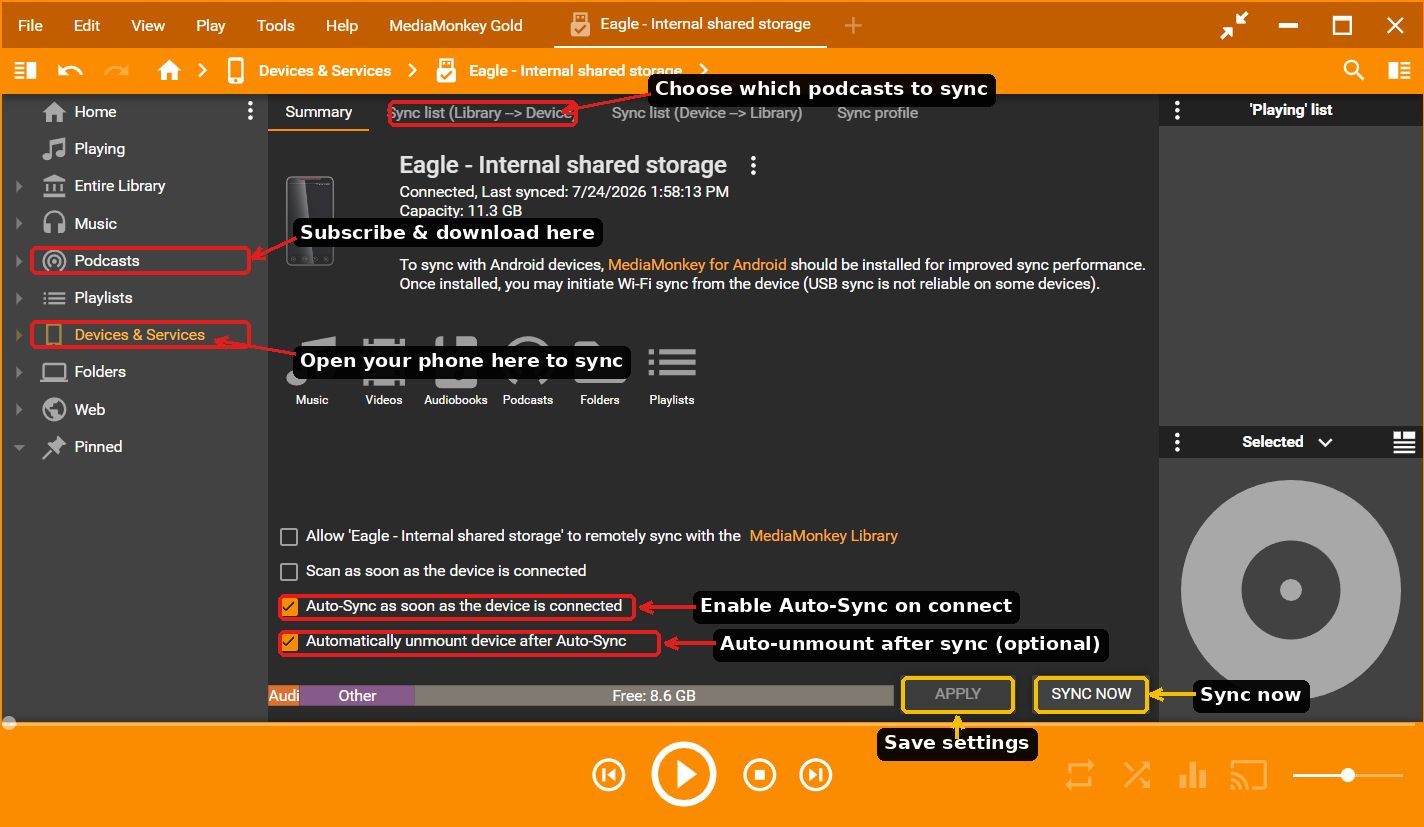
- In the left-hand menu, click the Podcasts tab.
- Now click, Podcast Directories at the top.
- Open Podcast Index and search for the podcast you want.
- Press Subscribe and then OK in the popup to add the podcasts.
Sync podcasts to your phone
- In the left-hand menu under Devices & Services, select your phone's internal storage or SD card.
- Click the Sync list (Library → Device) tab at the top.
- Select the Podcast subscriptions you want copied to your phone and click APPLY to save the changes.
- Click the SYNC NOW button.
Turn on Auto-Sync
On the device Summary tab, enable these options so your phone stays up to date automatically:
- Check "Auto-Sync as soon as the device is connected." New podcast episodes will then copy to your phone every time you plug it in.
- Optionally check "Automatically unmount device after Auto-Sync" so you can safely unplug once the sync finishes.
- Click APPLY.
Was this article helpful?
That’s Great!
Thank you for your feedback
Sorry! We couldn't be helpful
Thank you for your feedback
Feedback sent
We appreciate your effort and will try to fix the article