By default a GoDaddy hosted Microsoft 365 email only works with the Outlook email client. To use the account with a 3rd party email client, follow the guide below to enable standard IMAP/SMTP access.
Prerequisites
Sign in with the GoDaddy account that owns the domain.
Open the Exchange admin center
Go to https://productivity.godaddy.com and sign in.
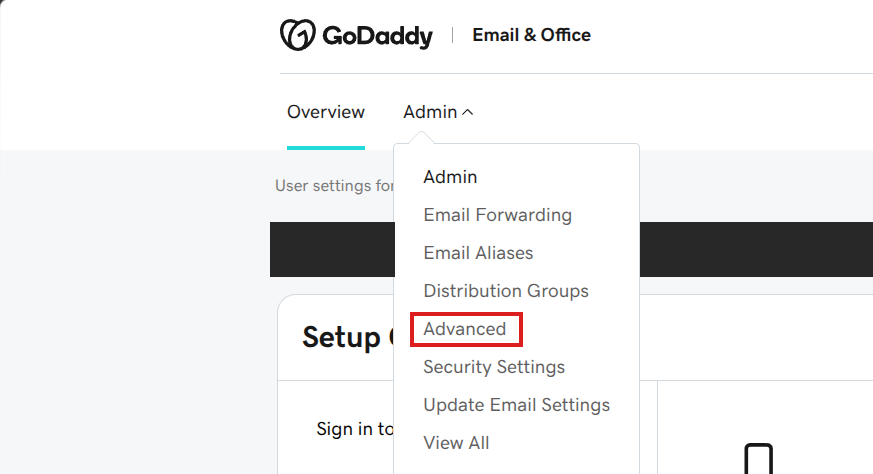
Select Admin → Advanced.
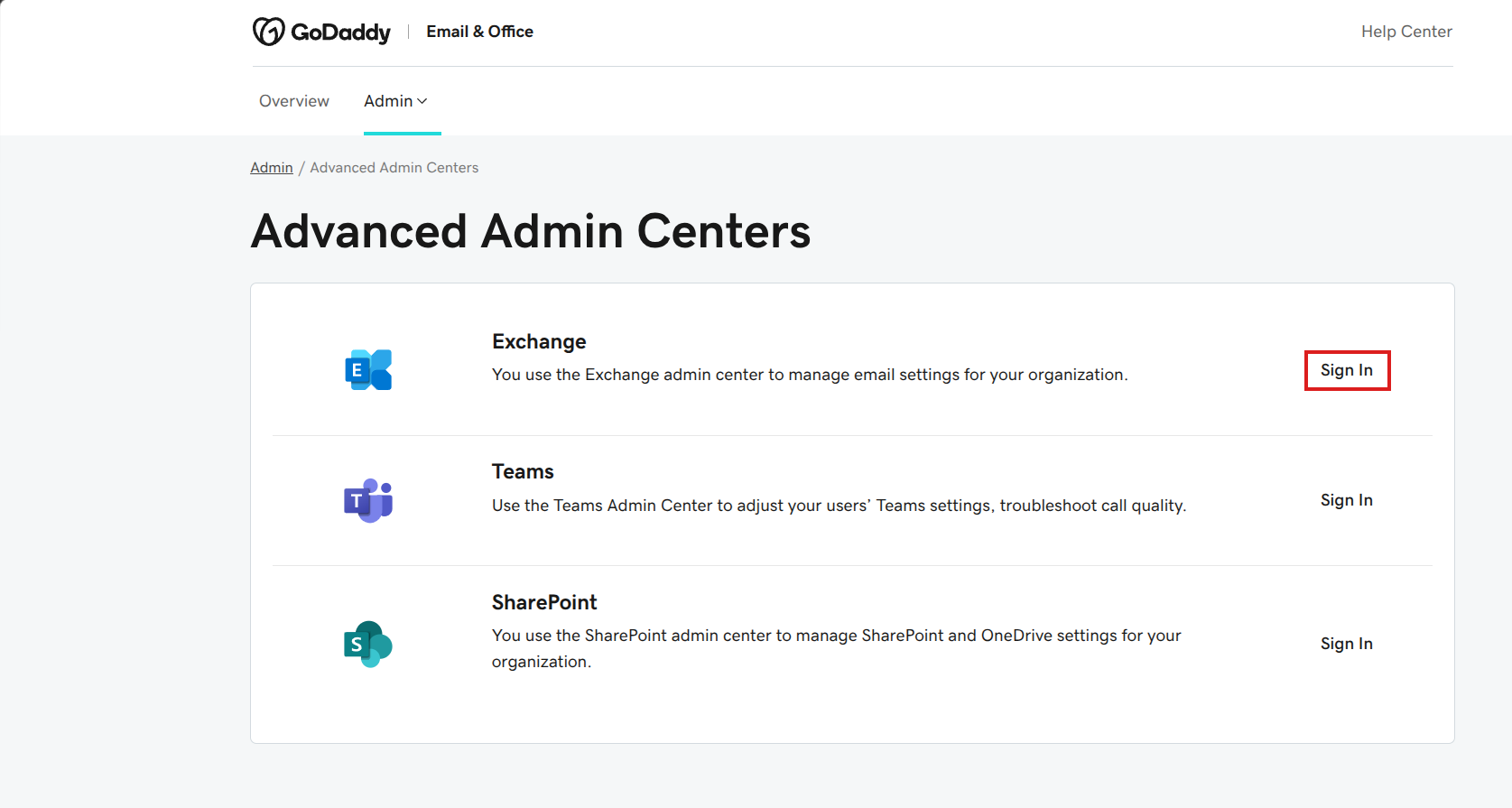
Next to Exchange, select Sign In. This opens https://admin.exchange.microsoft.com.
Setting 1: Allow SMTP AUTH for the organization
Go to Settings → Mail flow: https://admin.exchange.microsoft.com/#/settings
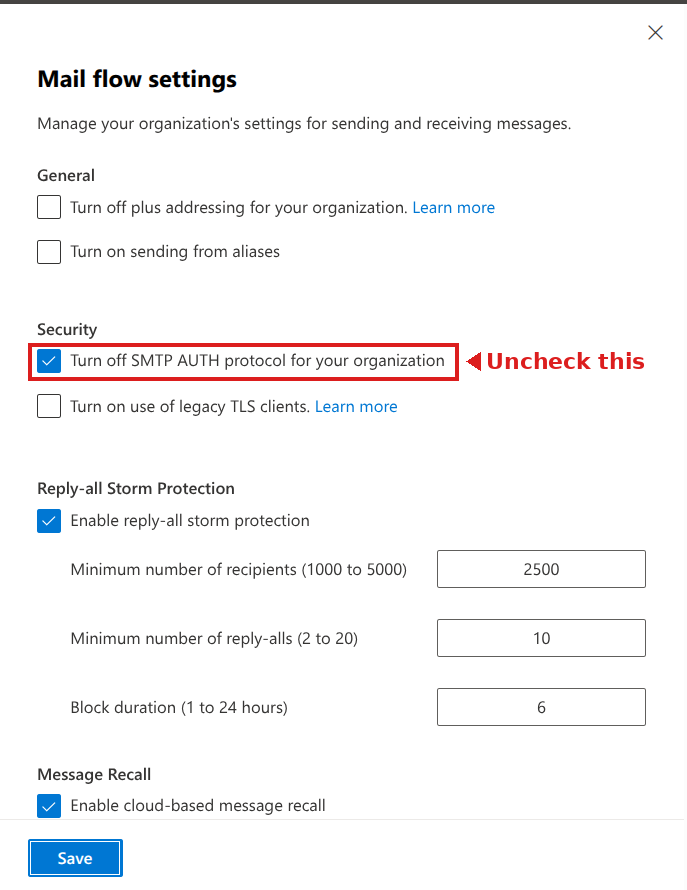
Under Security, untick Turn off SMTP AUTH protocol for your organization.
Select Save.
Setting 2: Allow email apps for the mailbox
Go to Recipients → Mailboxes: https://admin.exchange.microsoft.com/#/mailboxes
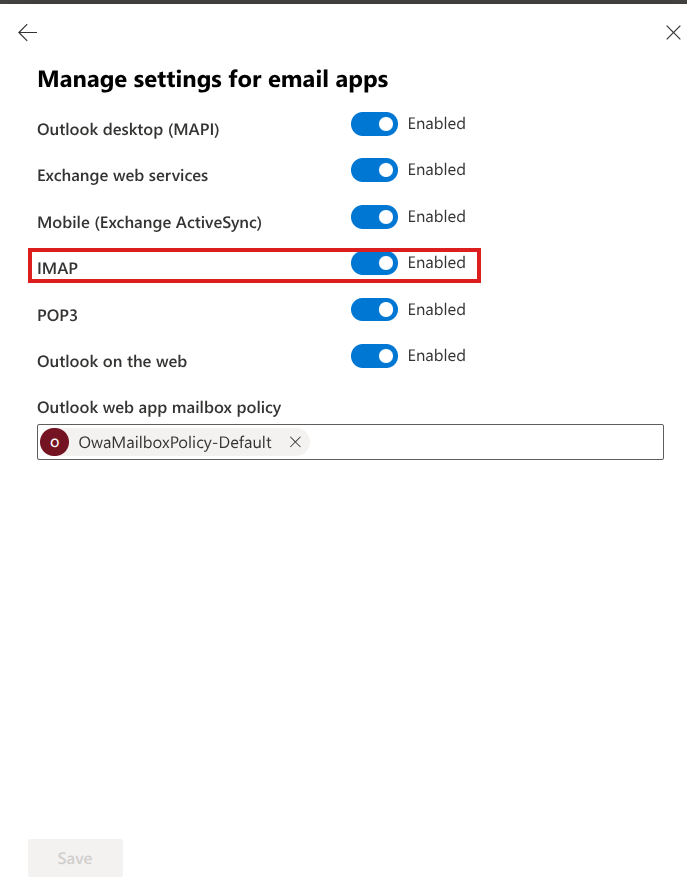
Select the mailbox, then on the Mailbox tab select Manage email apps settings.
Make sure IMAP is Enabled. If Authenticated SMTP is listed, enable it too.
Select Save if anything changed.
Changes can take up to an hour to apply.
Sign in on the phone
Open Email, enter the email address and select Next.
Tick I trust this configuration and select Sign in.
On the GoDaddy page, enter the password and select Sign in.
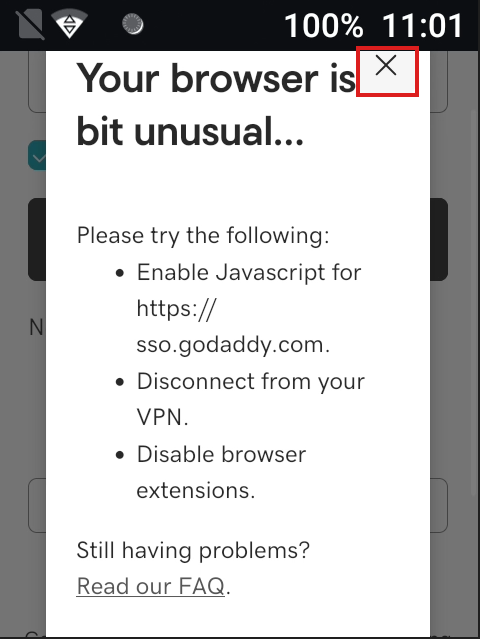
If “Your browser is a bit unusual…” appears, close it with X and select Sign in again.
Select Continue on “Do you trust [domain]?” and “Are you trying to sign in to Email?”.
If the outgoing server check fails, complete the prerequisites and select Retry.
Was this article helpful?
That’s Great!
Thank you for your feedback
Sorry! We couldn't be helpful
Thank you for your feedback
Feedback sent
We appreciate your effort and will try to fix the article